
This documentation applies to the latest version of Flashnote Derby (version 4).
Android users and other users of earlier versions of Flashnote Derby should
look here for help.
Monitoring Tournaments
Once you have a tournament in progress, you can add or remove students if needed. You may also view the leaderboard to see everyone’s fastest times
Adding or Removing Students
To add or remove students from a tournament, start by tapping the Teacher Services icon from the main note-choosing screen. Then tap, Manage Tournaments and select the tournament you wish to modify.
(If you are on a phone, tap Manage Participants to get to the list of participants.)
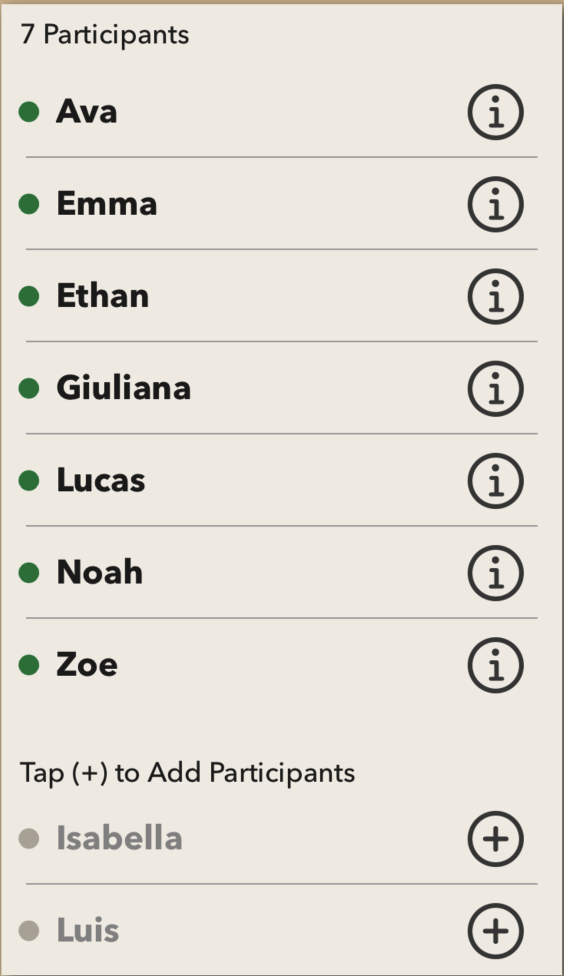
Students who have not yet been added as participants to this tournament will have a plus sign (+) next to their name. Tap it to add them as a participant. If you are connected with this student at home, they will receive an email notification and automatically be shown the tournament the next time they open Flashnote Derby. If you are not yet connected, you can enter the student’s (or parent’s) email address and a tournament invitation will be sent to them. You also have the option of not sending an invitation and allowing the student to participate in the tournament only using your device.
Students who have been added as participants will have an info (i) icon next to their name. Tap it to reinvite the student by email or to remove them from the tournament. If you do need to remove a student, they will not be able to rejoin this particular tournament.
Viewing the Leaderboard
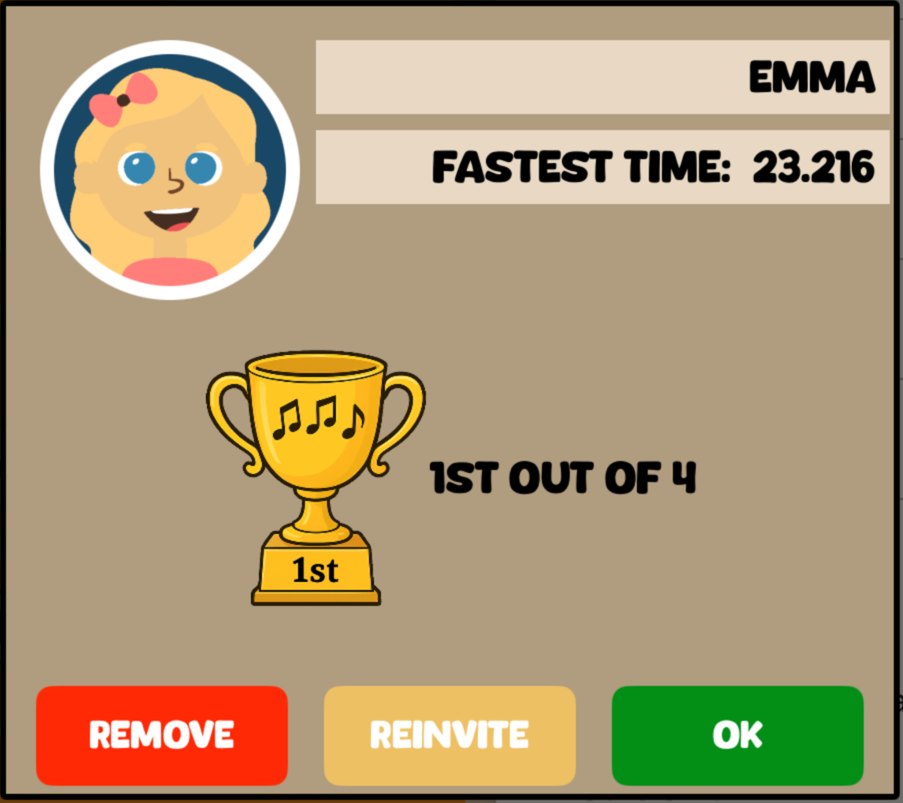
When you tap on a participant’s info (i) icon, you will see their current ranking in comparison to the other participants, as well as their fastest time.
To see the rankings and fastest times for everyone in one convenient list, tap View Results on the tournament info screen. The leaderboard is updated whenever a student achieves a personal best time. When the tournament has ended, the leaderboard will show the final results.
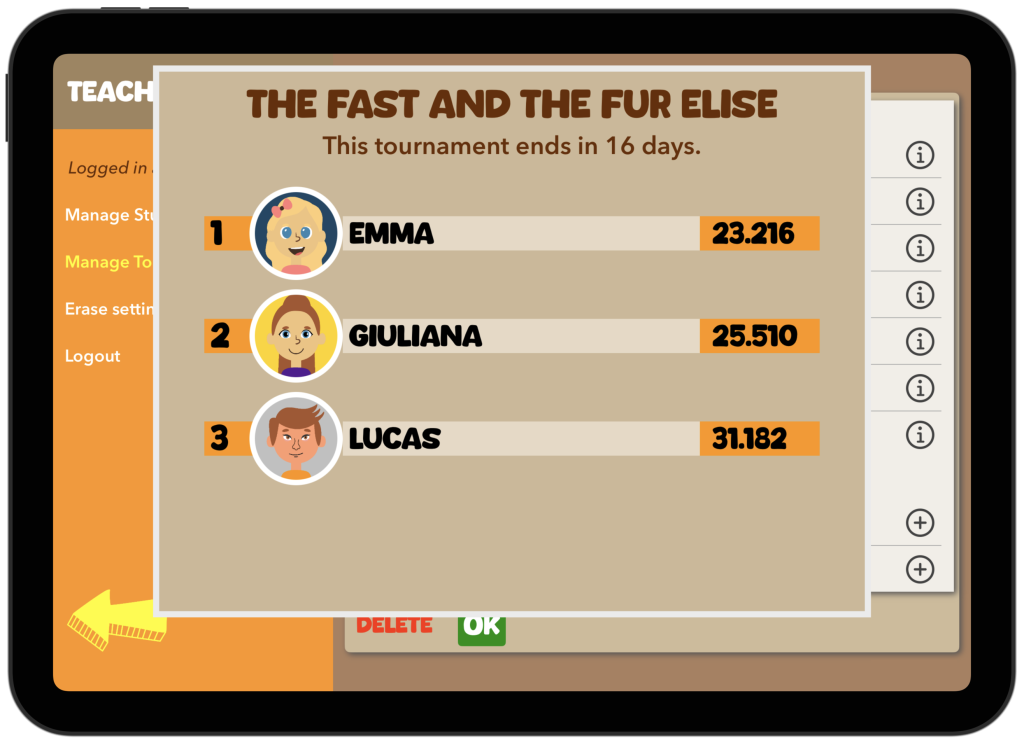
A student’s position in the leaderboard is always based on their fastest time.