
This documentation applies to the latest version of Flashnote Derby (version 4).
Android users and other users of earlier versions of Flashnote Derby should
look here for help.
Help Center
How to answer by playing the note on my instrument
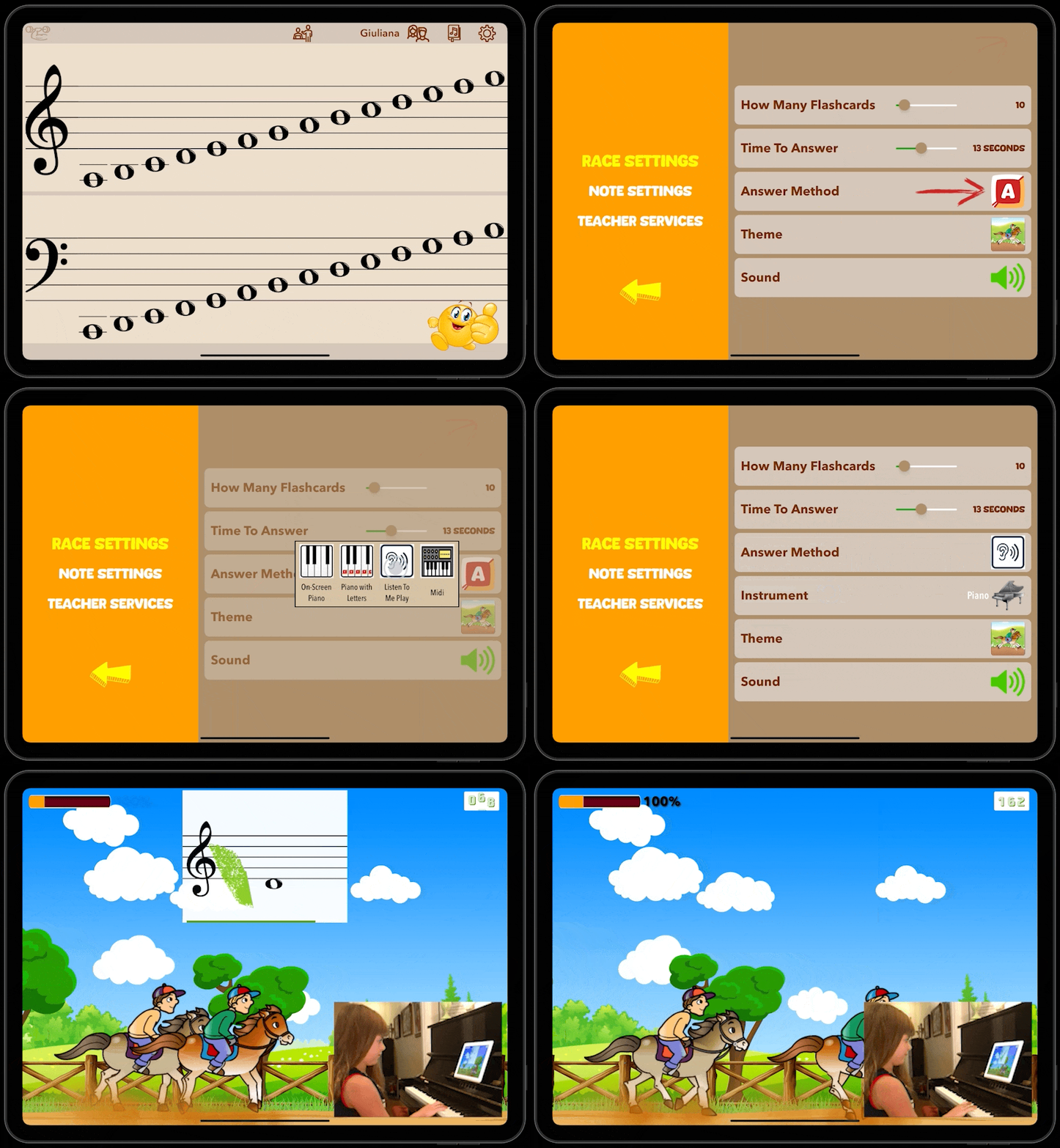
- Tap the settings icon
 in the upper right corner of the main note-choosing screen.
 - Next to Answer Method, tap the icon representing the answer method you currently have selected.
- Tap the Listen To Me Play icon
 so that Flashnote Derby will listen for you to play the correct note on your instrument.
Respond to any prompts asking you to allow Flashnote Derby access to the microphone. - If you play a transposing instrument, you need to select the proper instrument in order for your notes to be understood correctly. (See the article Using ‘Listen To Me Play’ With Transposing Instruments )
Now, when you start your next drill, no on-screen buttons will appear. You will simply play the correct note on your instrument.
- Minimize background sounds to get the best results.
- Stop playing the note once your answer has been heard. Otherwise, you might accidentally answer the next flashcard too.
- If you find that background sounds are interfering with the accuracy of the pitch detection, you can try turing the sensitivity slider down towards the minimum. Higher sensitivity means the app responds more quickly to a note being played, but can increase the possibility of misinterpreting it. Lower sensitivity will result in the app listening to your note for a slightly longer time, but may increase accuracy.