
This documentation applies to the latest version of Flashnote Derby (version 4).
Android users and other users of earlier versions of Flashnote Derby should
look here for help.
Creating Your First Tournament
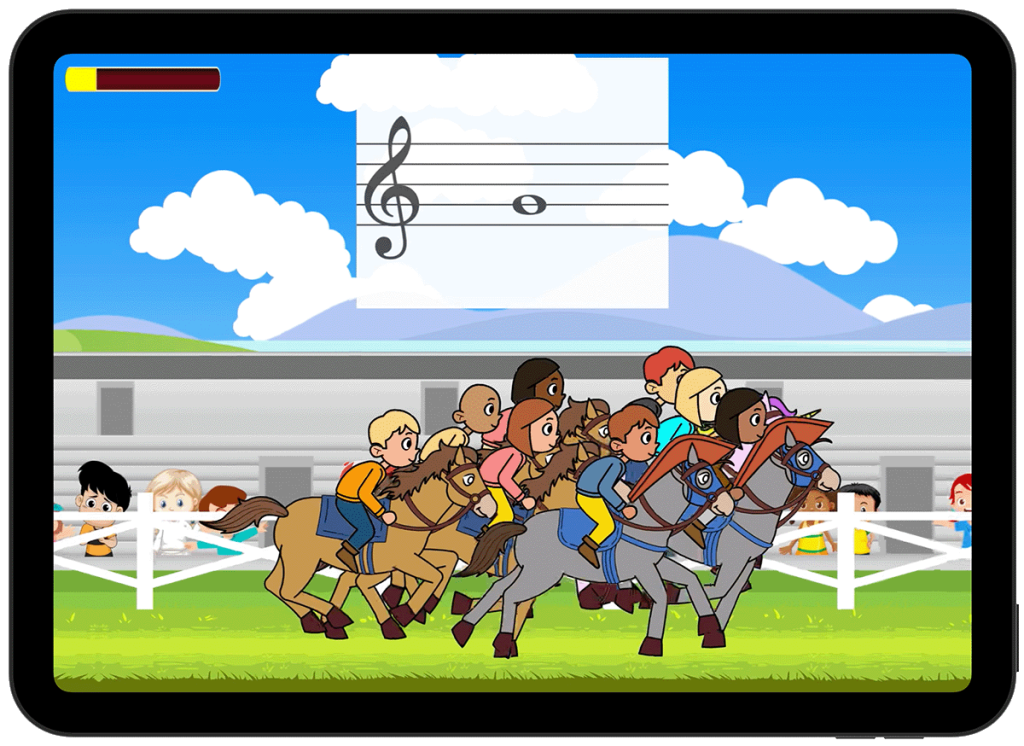
If you’re a teacher and have created a free account, you’re ready to start running tournaments. In a tournament, students compete to answer a set group of note flashcards in the fastest time possible.
Creating a tournament involves three basic steps:
- Choose the notes
- Create users (students) if needed.
- Create the tournament
Step 1 – Choose the notes
Start by selecting the notes you wish to include in the tournament. All students will be drilled on the same set of notes, so you will likely want to group students by age level or note reading ability.
Select your notes and create a preset note drill in the regular way. You’ll choose this preset when creating the tournament.
Step 2 – Make Sure Your Users Are Created
Students can compete:
- At home on their own device and / or
- On your device during lessons.
Either way, you need to create a user in Flashnote Derby on your device for each student in the tournament.
You can create users:
- From the Users icon on the main note-choosing screen, or
- From the Manage Students tab in Teacher Services
Any users you’ve already created are ready to be added to a tournament.
Step 3 – Create the tournament
Open Teacher Services and select Host a Tournament.
Tap the trophy icon in the upper right corner to create a new tournament.
Fill out the tournament form and add your participants.
Here is what each field in the form represents.
- Tournament Name
Any name you choose. Students will see this in their invitation and in their tournament list. - Preset Note Drill
Select the preset drill you created earlier. This determines which notes are used in the tournament. - Starts and Ends
Choose the starting and ending dates.- Too short: students may not have time to participate
- Too long: the sense of urgency may be lost
- How Many Flashcards
Default: All Notes – 1 time
You can also:- Run all notes two or three times
- Choose a fixed number of questions (10, 20, or 30)
Note: If you choose a fixed number, individual races may not see the exact same notes.
- Answer Method
Choose how students answer:- Letter buttons
- On-screen keyboard
- Playing the note
- All students use the same method.
MIDI is not currently available for tournaments.
- Leaderboard
Each tournament has a leaderboard showing the fastest times.
You can choose:- Show all participants, or
- Show only the top performers
This setting affects what students see.
You, as the teacher, can always view all results.
- Participants
Add students from the list.- Tap the + next to a student’s name to add them.
- If you’re already connected, they’ll receive the tournament automatically.
- If not, you can enter their email to send an invitation.
If a student will only use the tournament on your device, simply uncheck Send email invite.