
If you are a teacher, you can see your students’ progress in Flashnote Derby even when they are at home or on a different device.
- Your device must be logged in to a teacher account.
- Tap the users icon at the top of the screen.

- Find the user you wish to connect with and tap the info icon next to their name.

- Tap the sharing icon in the upper right corner of the report screen.

- Enter an email address that the student can access on their device.
- Enter your name as you would like it to appear in the invitation email they receive.
- Choose which classroom this student is in or provide a name for one. (You can certainly group all of your students into one classroom called ‘My Students’ if you do not need to organize them by classroom, grade, age, level, etc.)
- Click the Invite button.
- The student will receive an email like the following (tap to enlarge):
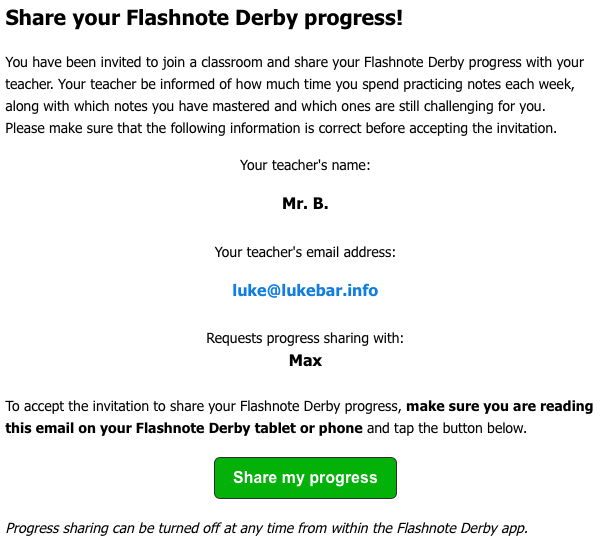
Once the student opens this email on their device and taps the Share my progress button, your devices will be linked. Data from the student’s device (minutes practiced, percentage of correct responses, which notes were missed, etc.) will be merged with the data on the teacher’s device, and vice-versa. The data you see in their chart on your device will now reflect any Flashnote Derby activity they have completed on your device as well as their device(s) that are linked to you. This information will be kept in sync between all of the devices.