This documentation applies to the latest version of Flashnote Derby (version 4).
Android users and other users of earlier versions of Flashnote Derby should
look here for help.
Help Center
Tracking A User’s Progress
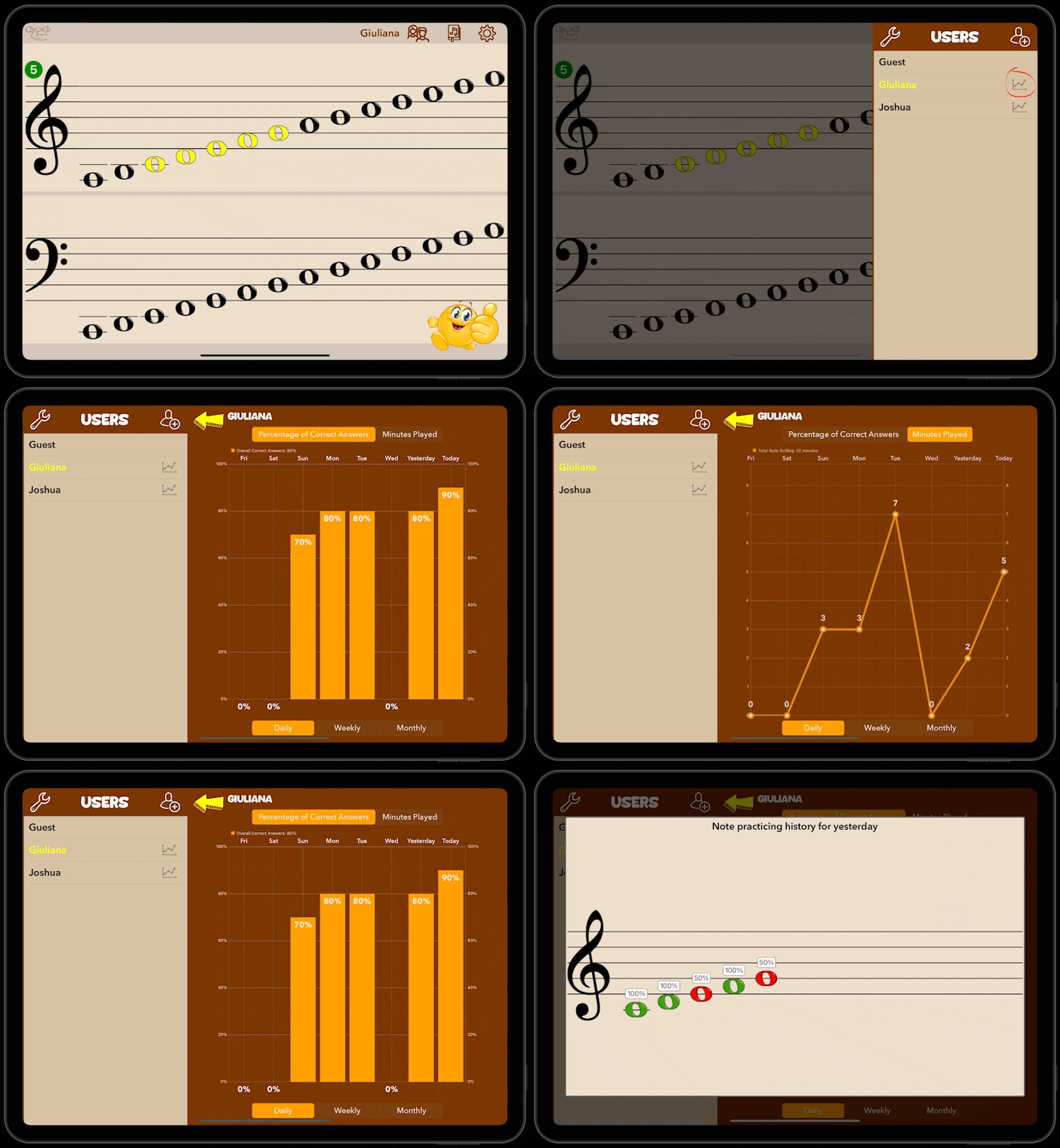
You can view the Flashnote Derby activity for any user you have created on your device. You can see a graph displaying the percentage of correct answers they have given as well as the total number of minutes they have practiced. You can also get a detailed view of which notes they mastered and which they are still struggling with.
To see a user’s Flashnote Derby progress…
- Open the users panel by tapping the users icon
 .
. - Tap the progress chart icon
 next to the desired user’s name.
 - The progress chart defaults to showing you the percentage of correct answers the user has given over the past week. You can also change the interval to show data by the week or the month (for the past eight months).
- You can change the chart to instead show the total number of minutes spent drilling notes in the app.